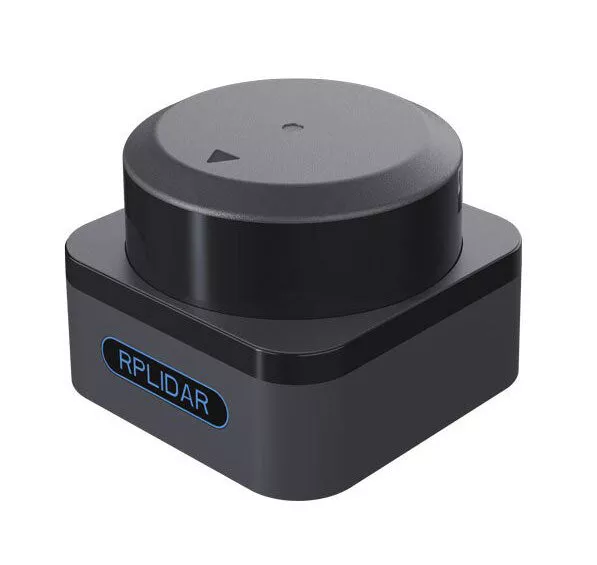
SLAMTEC RPLIDAR S3 Integration
This tutorial will guide you through the process of connecting a LiDAR sensor to your Leo Rover.
Light Detection and Ranging devices, or lidars for short, are mechanisms used for mapping the environment, object detection, tracking the speed of vehicles and in a wide range of other applications. In robotics 2D lidars, like A2M8 / A2M12, are used for things such as indoor SLAM (Simultaneous localization and mapping) or safety systems.
What to expect?
After finishing the tutorial you should be able to both gather the lidar data and visualize it using RViz. Just like in the image below:
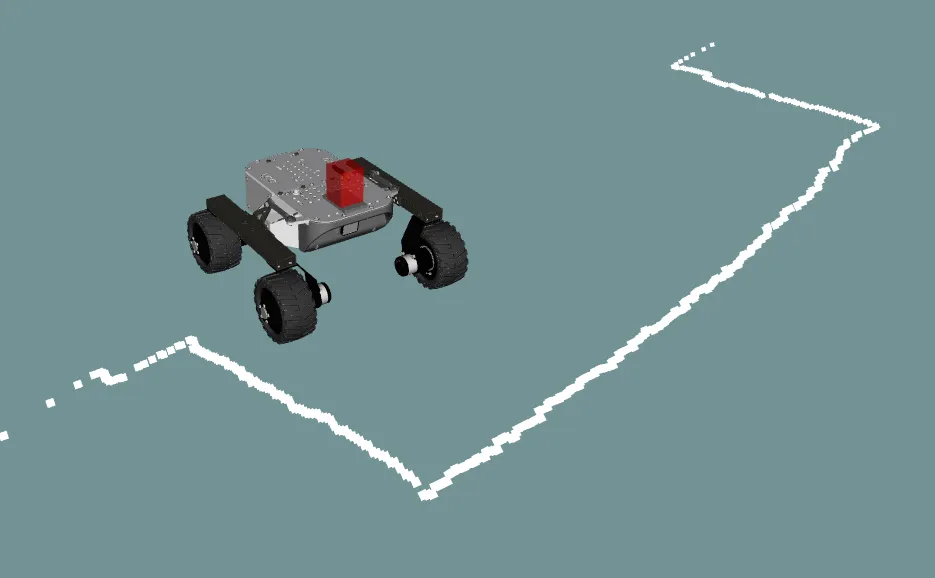
The robot will publish
LaserScan messages
on the /scan topic.
Prerequisites
Below is the list of all necessary tutorials and hardware components required to complete the integration.
Referenced products
Hardware integration
Mounting
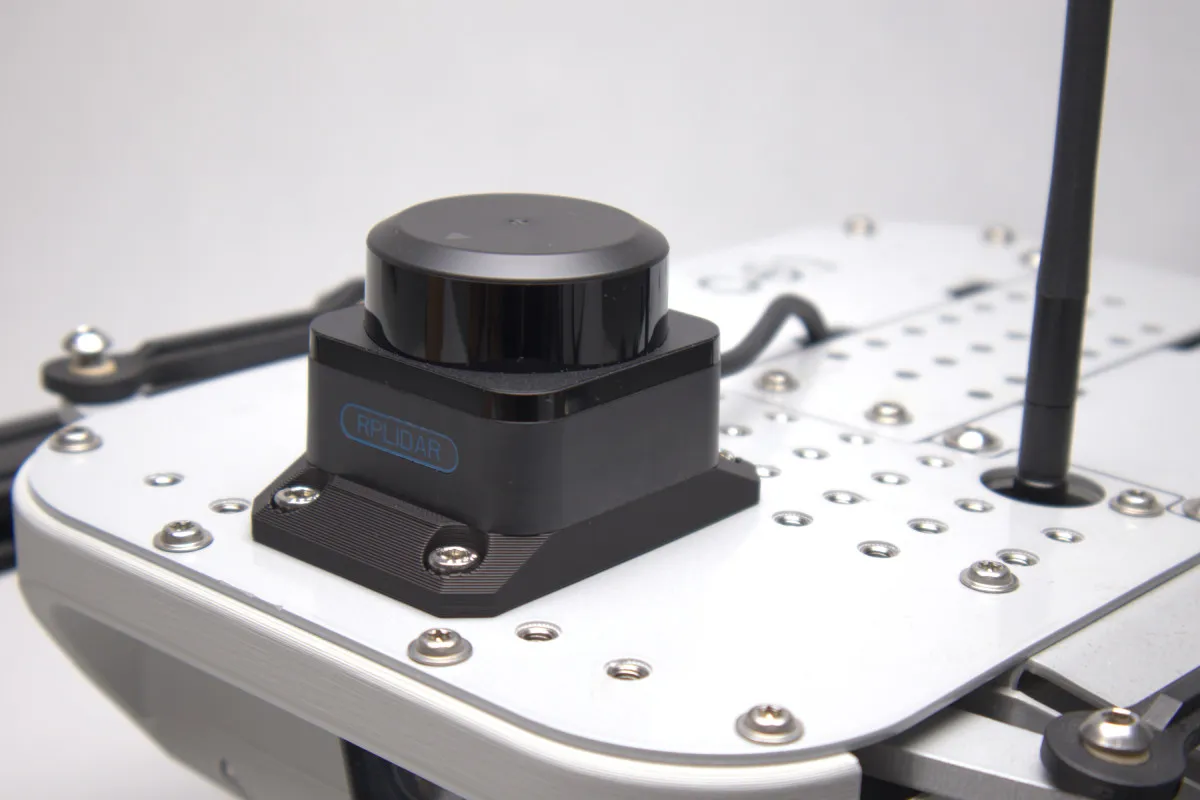
If you bought the integration kit, you can use the mounting adapter included in the kit. It is designed to mount the sensor on top of the rover's mounting plate, providing a wide field of view with minimal obstructions.
Required components:
- RPLidar S3
- RPLidar S3 adapter plate (included in the integration kit)
- M5x10 Allen head screws x4
- M2.5x6 Allen head screws x4
To mount the sensor:
- Align the RPLIDAR S3 with the adapter plate and secure it using 4 x M2.5x6 Allen head screws — one in each corner of the sensor base.
- Place the assembled sensor on the top of the Leo Rover's mounting plate.
- Fasten the adapter plate to the rover using 4 x M5x10 Allen head screws.
If you don't have the integration kit, you can also 3D print the adapter plate yourself. Get the files from the Addon Adapters page.
The URDF model provided in this guide assumes the sensor is mounted using our adapter plate in the default position on top of the rover. If you mount the sensor in a different position, you will need to adjust the origin values in the URDF file accordingly so that the sensor is correctly positioned in the robot model.
When positioning the sensor, make sure the laser beam's 360° field of view is not obstructed by cables, antennas, or other parts of the rover.
Wiring
The RPLIDAR S3 uses a TTL interface and comes with a TTL-to-USB adapter. To connect it to Leo Rover 1.9, use the following chain:
- Plug the TTL cable from the sensor into the TTL-to-USB adapter (included with the lidar).
- Connect the micro USB to USB-A cable (included with the lidar) to the micro USB port on the adapter.
- Use the USB-A to USB-C adapter (included with Leo Rover) to connect the cable to the USB-C port on top of the rover.
If the cable is long, try to tuck it into the empty space inside Leo Rover's back frame to keep it away from the lidar's field of view.
This connection provides both power and data transfer to the sensor, so no external power source is necessary. However, if you want a cleaner and more reliable connection, we recommend using the Powerbox addon:
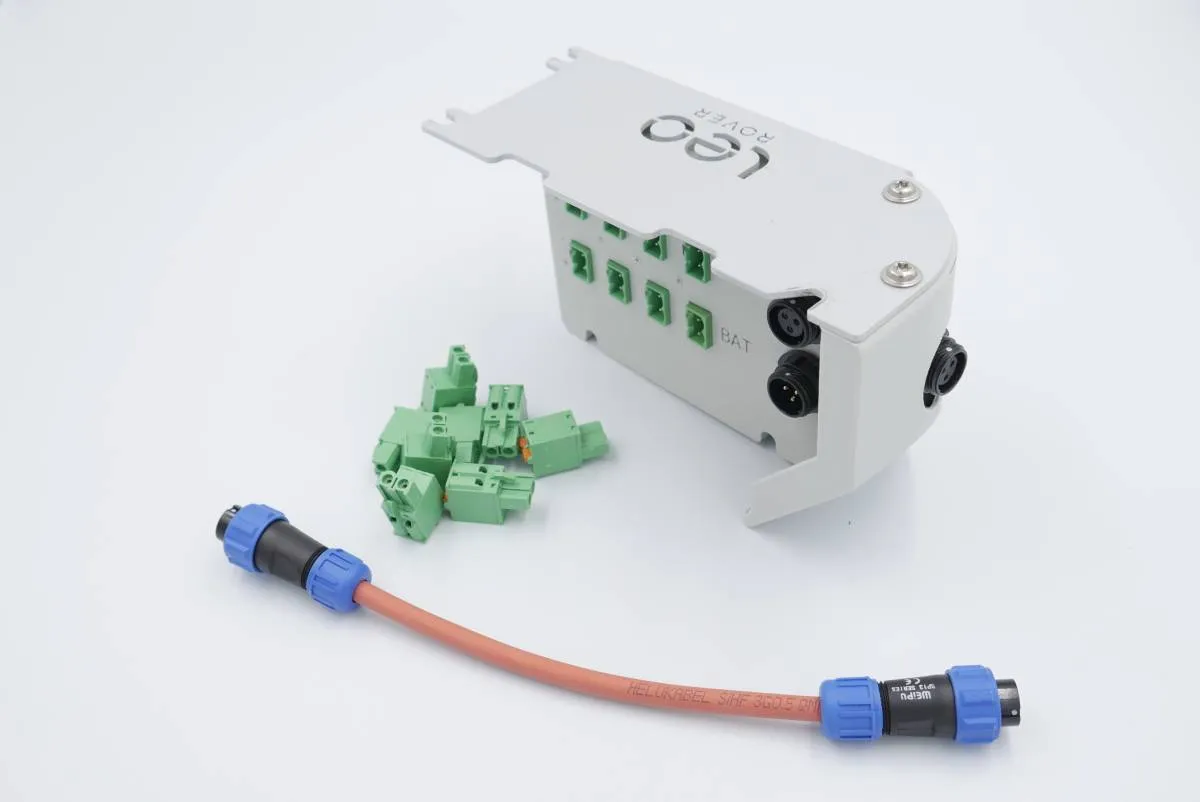
With everything connected, you are ready to try out your new sensor.
Software integration
The first thing you can do is to make sure your device has the correct permissions and is available at the fixed path on your system. To do this, you can add the following rule to the udev service:
KERNEL=="ttyUSB*", ATTRS{idVendor}=="10c4", ATTRS{idProduct}=="ea60", MODE="0666", GROUP="dialout", SYMLINK+="lidar"
Paste these lines to /etc/udev/rules.d/lidar.rules file and reload udev rules
by typing:
sudo udevadm control --reload-rules && sudo udevadm trigger
Your device should now be available at the /dev/lidar path.
We want the sensor functionality to be available in the ROS ecosystem, so you should install a ROS package that provides a node for the sensor you are trying to integrate.
sudo apt install ros-${ROS_DISTRO}-rplidar-ros
Now, create a launch file that would start the node with a fitting configuration.
<launch>
  <node pkg="rplidar_ros" exec="rplidar_node">
    <param name="serial_port" value="/dev/lidar"/>
    <param name="serial_baudrate" value="1000000"/>
    <param name="frame_id" value="laser_frame"/>
  </node>
</launch>
Include your launch file in the robot.launch.xml file, so that your node will
start at boot.
In /etc/ros/robot.launch.xml:
<include file="/etc/ros/laser.launch.xml"/>
The last step is to either reboot the robot or restart the nodes.
ros-nodes-restart
Modifying the URDF model
Your robot should be aware of where the sensor is located and what space it occupies. You can ensure it does that by creating a URDF model of the sensor.
<?xml version="1.0"?>
<robot>

  <link name="sp3lidar_link">
    <visual>
      <origin xyz="0 0 0.009"/>
      <geometry>
        <box size="0.08 0.08 0.018"/>
      </geometry>
      <material name="support">
        <color rgba="0 0 0 0.6"/>
      </material>
    </visual>
    <visual>
      <origin xyz="0 0 0.02975"/>
      <geometry>
        <box size="0.055 0.055 0.0235"/>
      </geometry>
      <material name="base">
        <color rgba="0.0 0.0 0.0 1.0"/>
      </material>
    </visual>
    <visual>
      <origin xyz="0 0 0.0504"/>
      <geometry>
        <cylinder radius="0.0253" length="0.0178"/>
      </geometry>
      <material name="lidar">
        <color rgba="1.0 0.0 0.0 0.7"/>
      </material>
    </visual>
    <collision>
      <origin xyz="0 0 0.009"/>
      <geometry>
        <box size="0.08 0.08 0.018"/>
      </geometry>
    </collision>
    <collision>
      <origin xyz="0 0 0.02975"/>
      <geometry>
        <box size="0.055 0.055 0.0235"/>
      </geometry>
    </collision>
    <collision>
      <origin xyz="0 0 0.0504"/>
      <geometry>
        <cylinder radius="0.0253" length="0.0178"/>
      </geometry>
    </collision>
  </link>

  <joint name="sp3lidar_joint" type="fixed">
    <origin xyz="0.0775 0 0.0"/>
    <parent link="base_link"/>
    <child link="sp3lidar_link"/>
  </joint>

  <link name="laser_frame"/>

  <joint name="laser_joint" type="fixed">
    <origin xyz="0 0 0.048" rpy="0 0 3.14159"/>
    <parent link="sp3lidar_link"/>
    <child link="laser_frame"/>
  </joint>

</robot>
And include it in the description that is uploaded at boot.
<xacro:include filename="/etc/ros/urdf/laser.urdf"/>
You can experiment with the URDF file and create a more representative model of the sensor by adding more visual and collision tags or by including meshes in STL or COLLADA format.
Example usage
Reading and visualizing the data
The robot should now publish the
LaserScan messages
on the /scan topic. You can check the raw data that it sends by typing:
ros2 topic echo /scan
If you have ROS installed on your computer, you can get a more graphical representation of the data with RViz. If you don't have ROS, you can follow this guide:
Now, open RViz by typing rviz2 in the terminal, or, if you have the leo_viz
package installed, type:
ros2 launch leo_viz rviz.launch
This will start RViz with visualization of the current robot model.
You can easily install the leo_viz package with this command
sudo apt install ros-${ROS_DISTRO}-leo-desktop
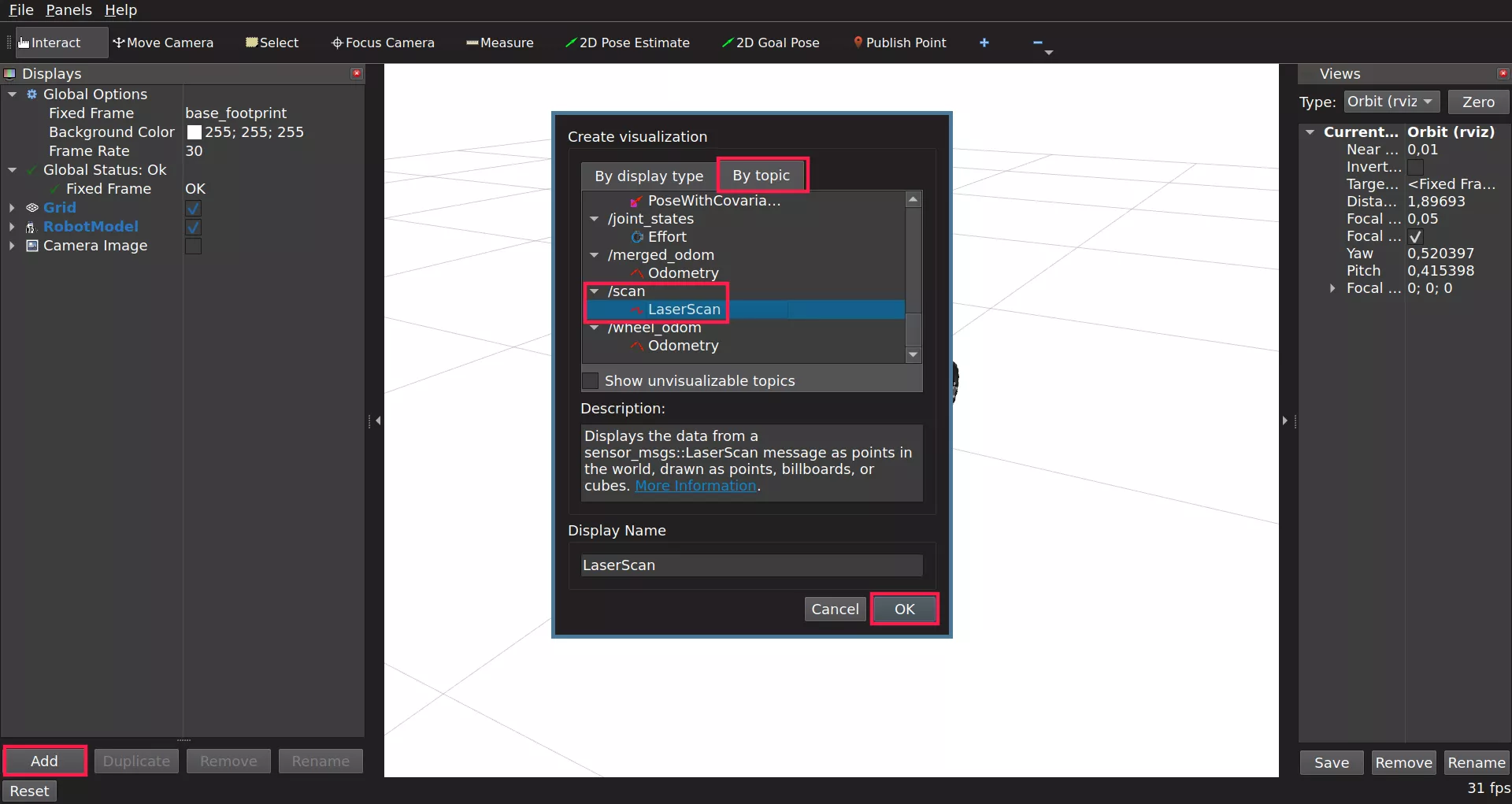
On the Displays panel click Add -> By topic and search for the /scan
topic. Choose the LaserScan display and click Ok.
Sometimes the scan data might not be visible as it will melt with the background. To fix this you need to change the color of the displayed laser. To do so, use the drop down arrow option from added LaserScan and set Color Transformer to FlatColor. As you do so, there will appear Color option which you can use to change the displayed laser.
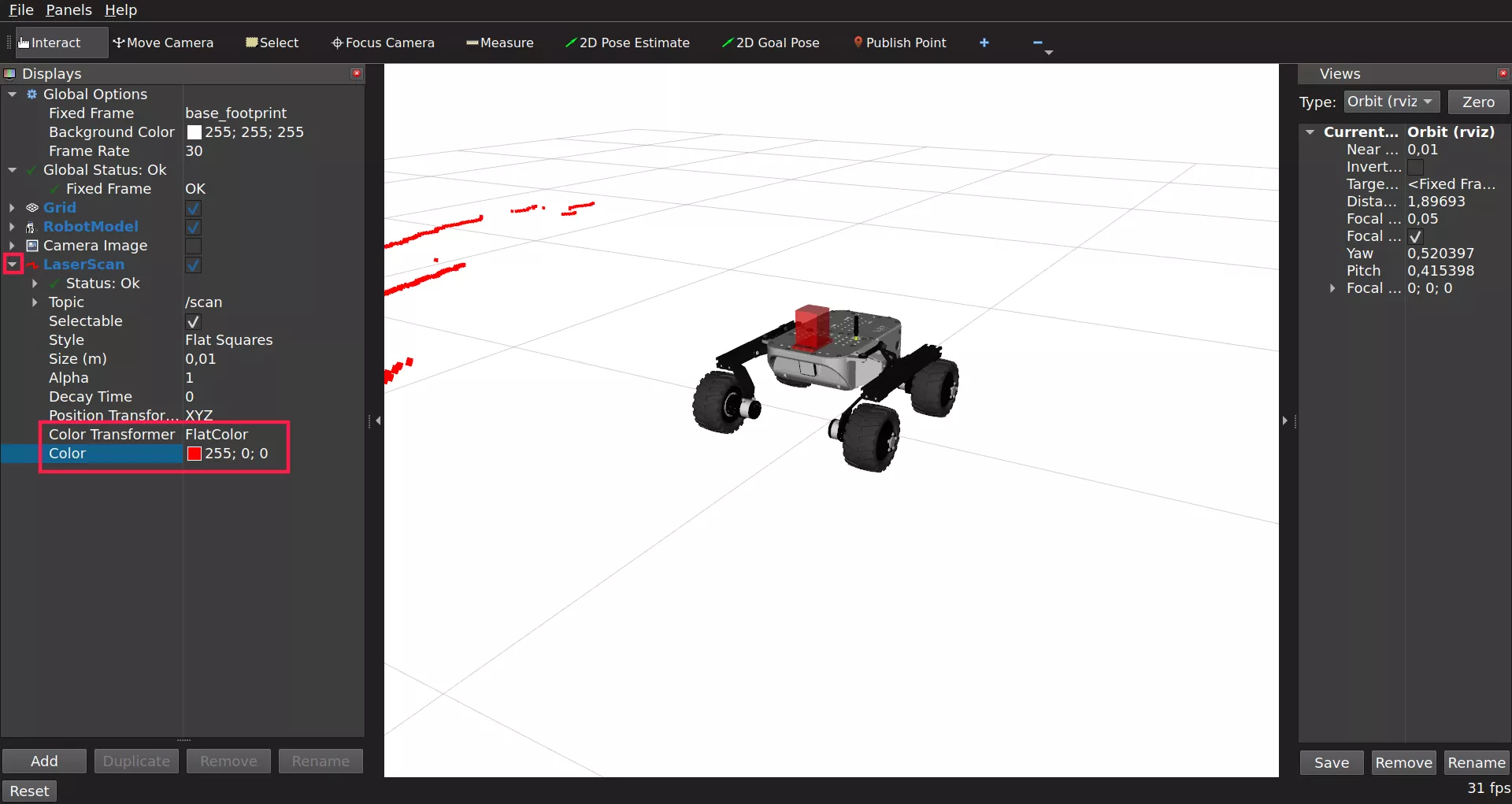
You should now be able to see the data from the sensor visualized as points in 3D space.
To put the points into the camera image, you can also add the Camera display.
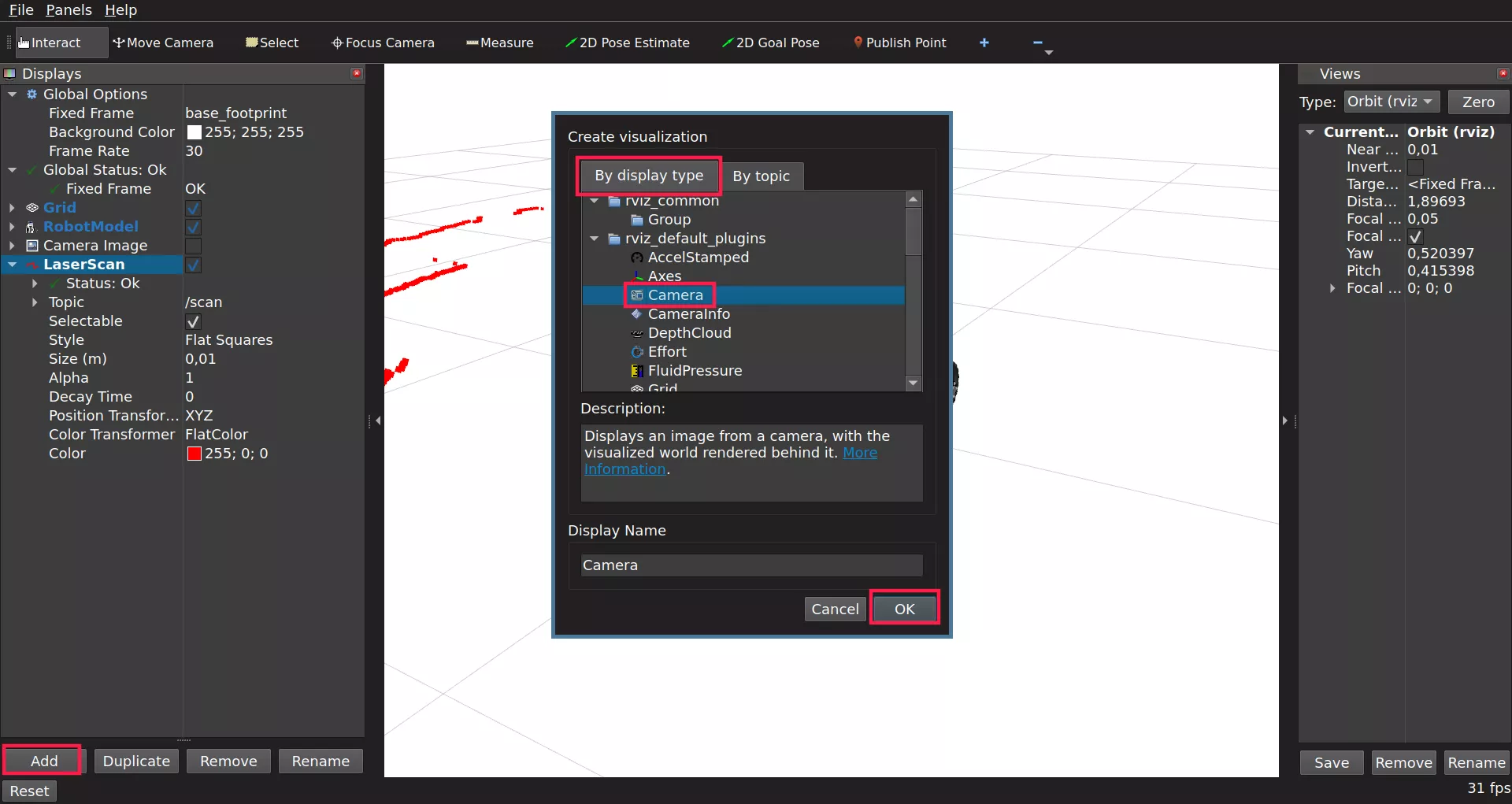
Be sure to select /camera/image_color as the Image Topic.
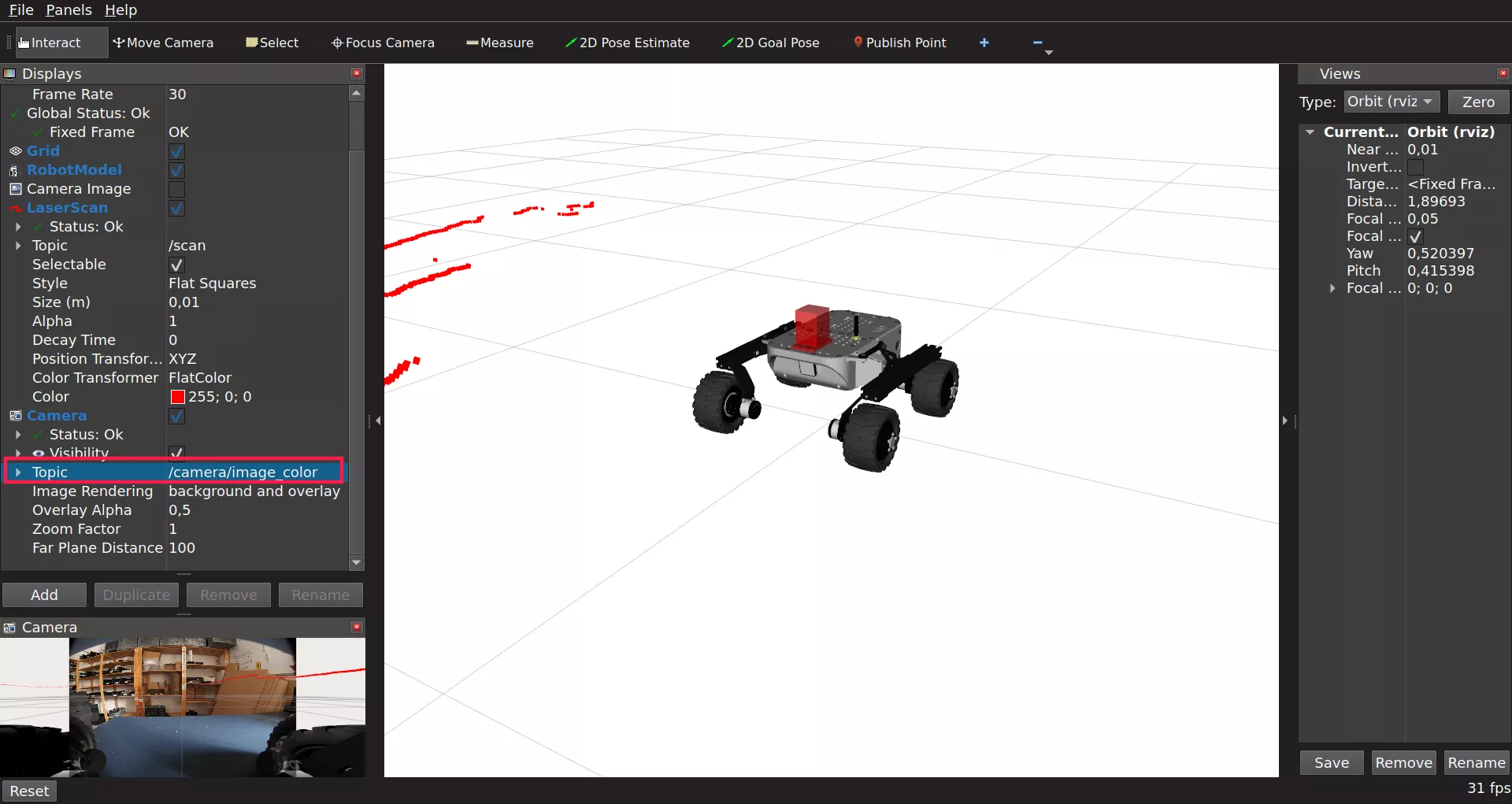
Here's an example end result:
What's next?
Lidars are commonly used in projects involving autonomous navigation, you might be interested in a tutorial about it.
They are however, not the only way of teaching a Leo Rover how to move on its own. Check out our line follower tutorial if you want to learn more. You can also check our Integrations page for more instructions.